

Canvas Faculty Support
Tennessee Tech provides faculty with training and resources to effectively use our learning management system and other teaching tools. This page is designed to provide faculty with guidance and support for navigating Canvas. Explore the information below for step-by-step self-guided assistance, watch one of our previous workshops, or schedule a consultation to learn more.
We are consistently updating this page as additional information is available and we continue to expand resources for faculty. Please contact citl@tntech.edu with questions or for more information.
Getting Started
- Access Canvas
Access Canvas
Faculty access to Canvas opened Thursday, March 12, 2026. Students have access beginning summer 2026. Faculty can login to Canvas using the link below or through the red C icon in TechExpress.
- Training and Support
Campus Resources
TN Tech Canvas Faculty Training is available within Canvas. If you do not see the training within your Dashboard, please contact citl@tntech.edu.
Trainings
View our upcoming weekly trainings here and our previous training recordings here.
Individual Consultations
Schedule an individual consultation using the bookings link on our website to meet with an Instructional Designer or Educational Technologist.
Support
All of the links and resources below can also be accessed using the Help button within the purple side navigation in Canvas.
Chat with Canvas Support (Faculty)
Live Chat with Canvas Support!
Canvas Support Hotline
+1 (844) 219-5804
Search the Canvas Guides
Find answers to common questions.
Visit the Community
Explore guides, updates, blogs, forums, and resources to help you find answers here.
Training Services Portal
Access Canvas training videos and courses in the Training Services Portal.
- Additional Resources & Assistance
Canvas Community Resources
- Canvas Instructor Website
- Canvas Basics Guide
- Instructor Getting Started Resources
- Instructure Community: Includes Canvas and other Instructure tools
Additional Assistance
If you need additional assistance, please use one of the options below.
Canvas Support Options
24/7 Assistance
- Select the Help icon in the Canvas global navigation menu
- Chat support
- Canvas Support Hotline
TN Tech Center for Innovation in Teaching and Learning (CITL)
Monday-Friday, 8:00 AM-4:30 PM
- Call 931-372-3675
- Email citl@tntech.edu
- Drop-in at Volpe Library, Room 113
- Submit a Help Request Form
- Helpful Forms
Helpful Forms
Visit our Canvas Helpful Forms website to request services within Canvas such as course combines, adding a co-instructor or Teaching Assistant, requesting a Master course, and more.
Canvas Essentials
- Canvas Dashboard
Canvas Dashboard
The Canvas Dashboard is the main landing page in Canvas. It is similar to the My Home area in D2L iLearn.
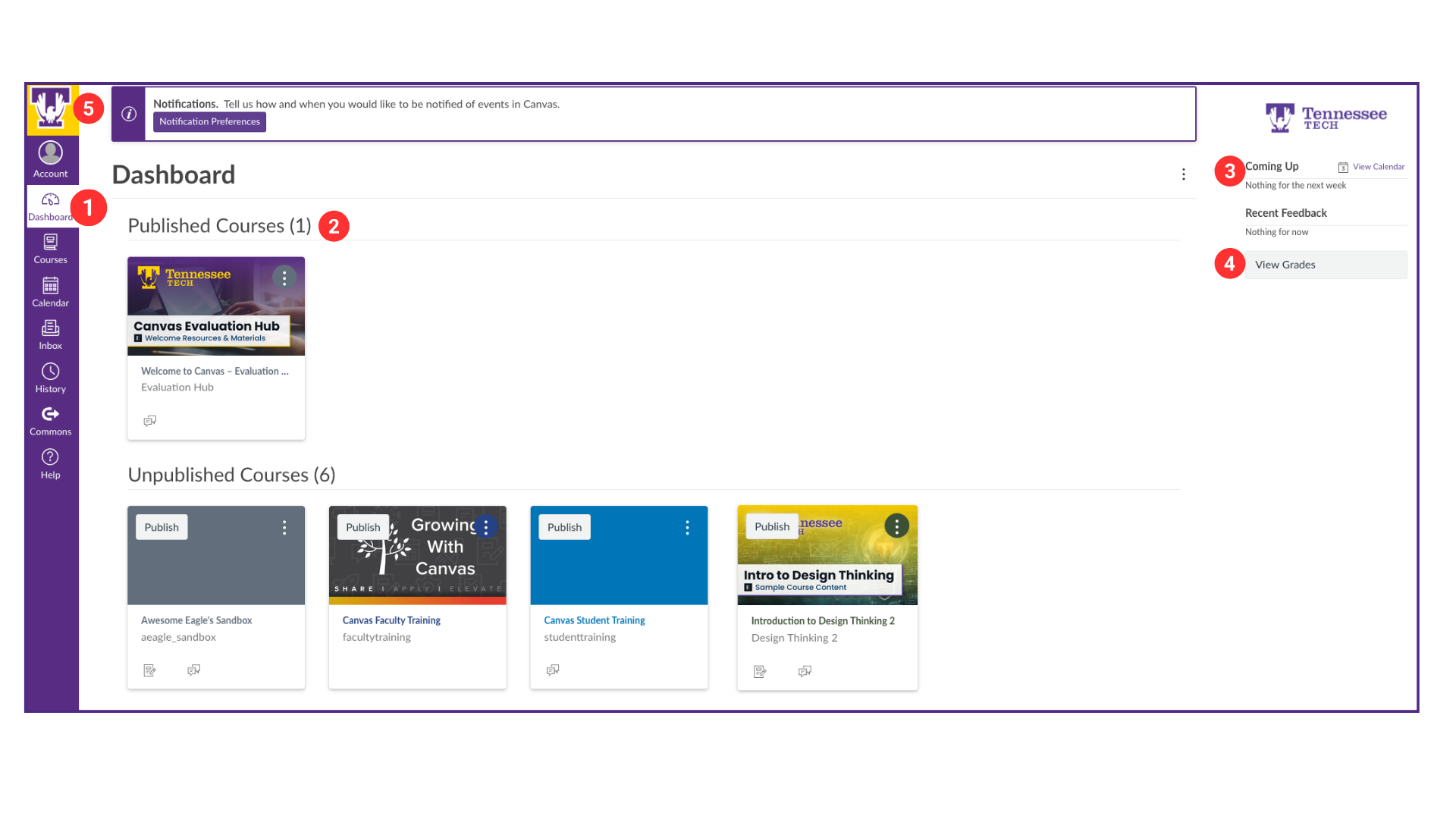
Items you will see on the Dashboard
- Global Navigation Menu – this menu is located on the left side of every page in Canvas. Learn more in the "Canvas Global Navigation Menu" area below.
- Course Cards – each card represents a course you have access to. It also has icons that show when there are new course announcements, assignments, or discussions. These cards are divided into two categories: Published (live courses) and Unpublished.
- To-Do List and Coming Up– shows upcoming assignments, discussions, and other activities that require your attention.
- View Grades – shows the list of courses you are teaching so you can go directly to the grades for that course.
- Global Announcements- are important messages from the institution that may appear at the top of the dashboard page when posted.
- Canvas Global Navigation Menu
Global Navigation Menu
The Global Navigation Menu is a consistent menu that is accessible throughout the system. The options available are:
user Account
Update your profile image, add a bio, and add links. Select which notifications you would like to receive and how for your account and/or specific courses. Update your account Settings, which includes language, time zone, and additional features available. The Canvas system defaults to Central Time, and all dates will be based on this time zone.
Learn more about: Editing your profile | Managing notifications | Edit account settings
gauge-min Dashboard
Goes back to your main dashboard page.
Learn more about the Dashboard.
book Courses
Shows a list of all courses you have access to.
Learn more about the Courses area.
calendar-days Calendar
Shows all course dates and deadlines. The instructor can drag and drop dates from one place to another, and it will update in the assessment dates. A user can add items to the calendar. You can link the Canvas calendar to Outlook or Google. This option is only one way, from Canvas to Outlook/Google, not from Outlook/Google to Canvas.
Learn more about the Calendar.
inbox-full Inbox
The internal email to Canvas. The email will be sent in both Canvas and to your TN Tech email.
clock History
Shows the history of where you have visited in the system.
arrow-right-from-arc Commons
Contains shared templates and courses.
question Help
There are multiple ways to get help. All are accessible from within Canvas by selecting the Help icon in the global navigation menu.
- Canvas Help – 24/7 (Both a Chat and Support hotline)
- ITS Helpdesk – Monday through Friday during business hours.
- Personalize Your Course Cards
Course Cards
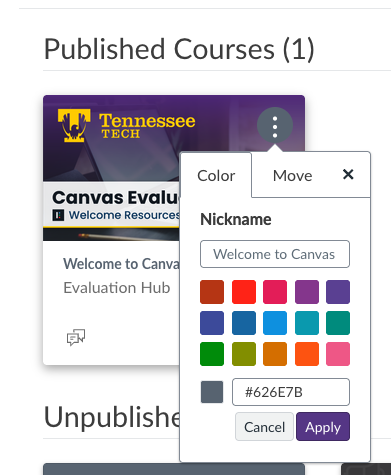
You have the ability to personalize your course cards for your own view. You can change the color of the course card and add a nickname for the course that appears to you in your Dashboard and when you look at the Courses menu.
Change the Color
The color chosen for a course is also used in the calendar and To-Do list to visually show which course the item is associated with.
- Select the three-dot menu in the upper-right of the course card.
- Select a color from the list or enter a hex color code.
- Click Apply.
Add a Nickname
This option could be helpful if you have multiple sections of the same class and would like to rename them to the days they are offered. These nicknames are only visible to you. The official course name will still appear for students. Students can also set a nickname in their course card.
For example: Rename Research and Argumentative Writing – ENGL-1020-001 to MW ENGL 1020.- Select the three-dot menu in the upper-right of the course card.
- Enter the nickname you would like to use in the Nickname field.
- Click Apply.
- Mobile App
Canvas Teacher Mobile App
Download & Install Mobile App
1. Go to the appropriate app store


2. Search for Canvas Teacher
3. Download and install the Canvas Teacher app (developed by Instructure)
Additional Resources
NOTEWe recommend downloading the Canvas student app as well to utilize the Student View tool in Canvas.
Designing and Managing a Course
The following are basic tools you will use to create your course in Canvas.
- View the TN Tech Template
TN Tech Course Template
The TN Tech Course Template, included in all new Canvas courses, provides faculty with a ready‑to‑use foundation for building and organizing their courses. It offers a consistent structure while allowing instructors to easily customize content for their own teaching needs.
-
Editable default homepage for instructors to customize with their course content
-
Instructor Information module with resources for creating Canvas pages, TN Tech branding, Canvas support materials, and Sample Content Pages
-
Student‑facing Module 0: Getting Started, which includes:
-
Two editable pages for instructors to add course‑specific information
-
Student‑friendly Canvas guidance and links to TN Tech resources
-
-
Example instructional module to model effective course organization and design
-
- Announcements
Announcements
Announcements allow instructors to communicate with students about course activities and post interesting course-related topics. One difference between D2L and Canvas is that an announcement cannot be set as a Draft.
Learn more about the Announcement Tool in the Faculty Training here or view Canvas guides below.
Canvas Community Guides
- Add an announcement
- Edit an announcement
- Delete an announcement
- Copy an Announcement to Another Course
- Show recent announcements on the Course Home page.
- NOTE: It is recommend to not show more than 3 items at a time.
- Content Modules
Content Modules
Modules are used to organize course content by weeks, units, or a different organizational structure. Modules essentially create a one-directional linear flow of what students should do in a course. They allow instructors to organize content to help control the flow of the course.
The Modules area contains the content and links for the course. Unlike D2L, it is not set up in modules and sub-modules. You will have a module with links to pages, files, external links, or assessments that guide the student through the course.
Learn more about Modules in the Faculty Training here, watch our previous workshop recording, or view the Canvas guides below.
Canvas Guides
- Add a module
- Add content to a module
- How do I require the student to progress through the content in a specific way? Similar to Release Conditions in D2L.
- Add Prerequisites – if specified, it will lock the module until the student has completed any prerequisites.
- Add Requirements – these are defined requirements within a module that a student must complete.
- Publish a module
- Copy your module to another course
- How to edit or delete a module
Using the Rich Content Editor (RCE)
The RCE is an online editing tool for creating content.
It appears throughout the Canvas system in Announcements, Assignments, Pages, Discussions, Quizzes, and Syllabus sections. It is available for faculty and students.
Learn more in the Faculty Training here or view our previous recording.
- Assignments
Assignments
Assignments include Quizzes, graded Discussions, and online submissions (i.e. files, images, text, URLs, etc.).
While the Assignments tools in both D2L and Canvas are where the course assignments are found, the tool works differently in Canvas than in D2L.
- In Canvas, it not only lists the assignments in the course, but you will also see graded discussions, quizzes, and attendance (using the Attendance tool). All graded assessments will be listed in the Assignment area.
- The assignment tool in Canvas is also where you set up the assignment groups and their corresponding weight in the total grade. In D2L, this was done in the Grades area by choosing a Weighted grade system, creating Grade Categories, and setting the weights of the category.
Learn more about Assignments in the Faculty Training here, view our previous recording, or view the Canvas guides below.
Creating Assignments
Creating Assignment Groups for Weighting Grades
- Quizzes
Quizzes
Instructors can use New Quizzes to create quizzes using a variety of questions types. New Quizzes display as assignments in the Assignments page and can be duplicated. Students can take New Quizzes quizzes within their Canvas courses.
Learn more about Canvas Quizzes in the Faculty Training here, in the Canvas guides below, or view our previous recording.
Please NoteWe are using the "New Quiz" feature within Canvas. When searching for additional support information from the Canvas Community, select the New Quizzes support documents.
- » Comparison with Quizzes in iLearn/D2L
Quizzes in Canvas slightly differ from the Quizzes in D2L.
Similarities
-
You will have similar settings and question types when creating your quiz.
-
You can store your questions in a central location to reuse and manage them. In D2L, it is the Question Library, and in Canvas, it is the Item Bank.
Differences
-
Any updates made to a question in the Item Bank will push out the update to the question in the quizzes.
-
In Canvas, the creation process is not all on one screen. You will enter the basic information, including point values and dates, before building the quiz by adding questions and selecting the settings.
-
In Canvas, the Item Bank, which is equivalent to the Question Library, can be shared with other courses and people. It is a user-specific bank of questions as opposed to a course-specific bank of questions
-
- » Create and Edit Quizzes
Create and Edit Quizzes
- » Item Banks
- » Question Types
Question Types
- » Quiz Results and Grading
Quiz Results and Grading
- » Comparison with Quizzes in iLearn/D2L
- Discussions
Discussions
Discussions allow for interactive communication between two or more people; users can participate in a conversation with an entire class or group.
Unlike D2L, in Canvas, you do not need to have a Forum to have a Topic. In Canvas, you will simply create a discussion.
Learn more about Discussions in Canvas in the Faculty Training here, view a previous workshop recording, or view the Canvas guides below.
Canvas Guides
- Create a discussion
- Make sure to select the Graded option to create a graded discussion. This will automatically add the grade column in the Grades area, and it will be in the Assignments list.
- Edit a discussion
- Create a group discussion
- Create a peer review discussion
- Reply to a discussion
Learn more in the Faculty Training or view our previous recording.
- Create a discussion
- Rubrics
Rubrics
A Rubric is an assessment tool for communicating expectations of quality. Rubrics are typically comprised of rows and columns. Rows are used to define the various criteria being used to assess an assignment. Columns are used to define levels of performance for each criterion.
Rubrics can be set up as non-scoring rubrics, which allows for assessment-based and outcome-based grading without points.
Learn more about Rubrics in Canvas in the Faculty Training here or view the Canvas guides below.
Canvas Guides
- Create a rubric
- Manage rubrics
- Attach rubrics to different assessments
- Grades
Grades
The Gradebook stores all information about student progress in the course, measuring both letter grades and course outcomes.
Learn more about Grades in Canvas in the Faculty Training here, view a previous workshop recording, or view the Canvas guides below.
Canvas Guides
- SpeedGrader
SpeedGrader
As an instructor, SpeedGrader allows you to view and grade student assignment submissions in one place using a simple point scale or complex rubric.
Learn more about SpeedGrader in Canvas in the Faculty Training here, view a previous workshop recording, or view the Canvas guides below.
Canvas Guides
- Getting started with SpeedGrader
- Accessing Speedgrader
- Utilizing Speedgrader
- Rubrics in Speedgrader
Additional Tips for Speedgrader
- People (Class roster & Group sets)
People
The People area shows the list of students and people enrolled in the course. The students are added by our SIS system integration and cannot be added manually. Click the links below to learn more about this tool.
- Access the People enrolled in your course.
- View user details for an enrollment.
- Use Differentiation Tags to assign specific content to a customized set of students.
- View a summary of all your interactions with a student in a course.
- View the course access report for an individual student.
- View the last date the user attended the course.
Group Sets
The groups for Canvas are created in the People tool. You can set up different types of groups for use in your course. Click the links below to learn more about this tool.
- Course Settings & Course Navigation
Course Settings & Course Navigation
Course Settings is where you can easily update and view course details, sections, navigation link options, external app configurations, feature options, and integrations.
- Files
- Conferences and Virtual Meetings
Conferences and Virtual Meetings
Software Integrations and Updates
- Software Integrations with Canvas
Software Integrations with Canvas
Canvas has the ability to integrate with many different tools that are used on campus. These include publisher content, research resources, Microsoft or Google documents, Teams, Zoom, and more.
- Canvas Release Updates
Canvas Release Updates
Check out the Canvas Releases page to stay up to date with the most recent Canvas releases.