

Canvas Student Support
Tennessee Tech provides students with training and resources to effectively use Canvas and other classroom technologies. Support includes guidance on Canvas Basics, utilizing the LMS, and more. Explore the information below for step-by-step self-guided assistance.
Canvas Student Training
Student training in Canvas is designed to help students learn about the tools and features available in Canvas, as well as how to submit assignments, discussions, and more within their courses. Students can self-enroll using the link below. This training is optional. Students who complete all the requirements and pass the quizzes for each module will receive a certificate of completion.
We are consistently updating this page as additional information is available and we continue to expand resources for students.
- Access Canvas
How to Access Canvas
Students can login to Canvas through the red C icon in TechExpress or through the link below.
- Mobile App
Canvas Student Mobile App
Download & Install Mobile App
1. Go to the appropriate app store


2. Search for Canvas Student
3. Download and install the Canvas Student app (developed by Instructure)
- Find Your Courses
Find Your Courses on Canvas
When you enter Canvas, it will take you to your Dashboard area. This is unique to each person and shows the Global Navigation Menu (on the left), the courses you have access to, and a To Do List to the right of the page.
- You can also select the Courses option on the Global Navigation Menu to see your courses from anywhere in the system.
- Select a Course Card to enter the course.
- Canvas Dashboard
Canvas Dashboard
The Canvas Dashboard is the main landing page in Canvas. It is similar to the My Home area in D2L.
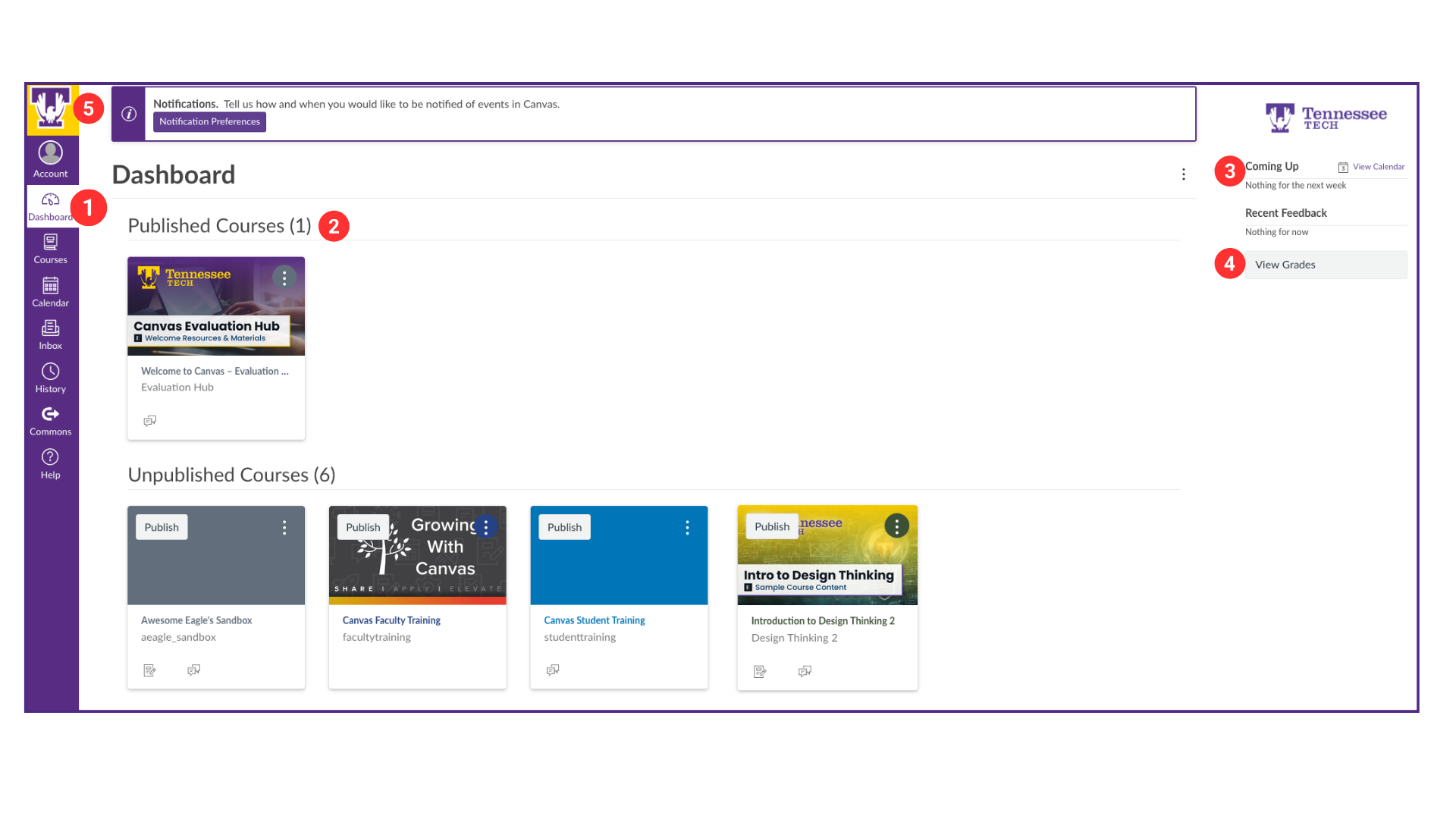
Items you will see on the Dashboard
- Global Navigation Menu – this menu is located on the left side of every page in Canvas.
- Course Cards – each card represents a course you have access to. It also has icons that show when there are new course announcements, assignments, or discussions.
- To-Do List/Coming up – shows upcoming assignments, discussions, and other activities that require your attention.
- View Grades and Recent Feedback – shows recent feedback on assessments that have been posted in your courses.
- Global Announcements are important messages from the institution that may appear at the top of the dashboard page when posted.
- Personalize Course Cards
How to Personalize Course Cards
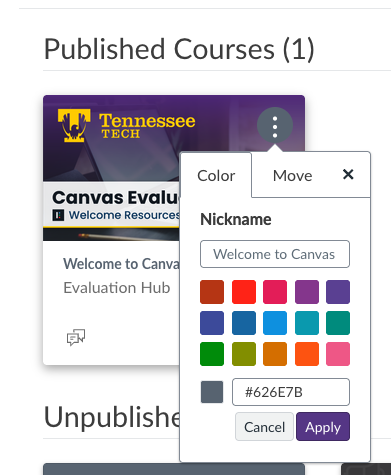
You have the ability to personalize your course cards for your own view. You can change the color of the course card and add a nickname for the course that appears to you in your Dashboard and when you look at the Courses menu.
Change the Color
The color chosen for a course is also used in the calendar and To Do list to visually show which course the item is associated with. To change the color, follow the steps below.
- Select the three-dot menu in the upper-right of the course card
- Select a color from the list or enter a hex color code
- Click Apply
Add a Nickname
This option could be helpful if you want to show the course details instead of the entire name of the course in your view. The nickname will appear in the Dashboard, the mobile app, and the Courses list. For example: Rename Research and Argumentative Writing – ENGL-1020-001 to MW-ENGL-1020-001.
- Select the three-dot menu in the upper-right of the course card
- Enter the nickname you would like to use in the Nickname field
- Click Apply
- Use the Canvas Calendar
Use the Canvas Calendar
View our calendar using the Calendar link in the global navigation menu to the left. Click the links below to learn more about this tool.
- Use the Calendar
- Filter the Calendar by Course
- Add an Event to Your Personal Calendar
- Create a Calendar Feed to Your Personal Calendar:
- Notification Settings
Notification Settings
Students can set their notifications in Canvas to optimize their course communication. Click the link below to learn more about how to set your notifications in Canvas.
- View Course Content Modules
Viewing Course Content Modules
The content area in Canvas is called Modules. This area can have links to content pages, files, external tools, URLs, assessments, and activities for the course. Click the links below to learn more about this tool.
- Access and Submit Assignments
Access and Submit Assignments
The Assignments area in Canvas will list all graded assessments in the course. You will see the assignments, discussions, and quizzes. You can view the assignments by date or type. Click the links below to learn more about this tool.
- Access and Take Quizzes
Access and Take Quizzes
The quizzes tool works similarly to D2L. Quizzes can be accessed through the Modules area. Click the links below to learn more about this tool.
- Participate in Discussions
Participate in a Discussion
The discussion tool allows students in a course to participate in course and group discussions. These can be accessed by going to the Discussions link on the course menu, or your instructor might choose to link them directly through the content modules area. Click the links below to learn more about this tool.
- View Grades
View Grades
The grades area displays all current grades for the course assessments. You can also view scoring details, comments, and rubrics. Click the links below to learn more about this tool.
- Additional Assistance
Additional Assistance
If you need additional assistance, please use one of the options below.
Canvas Support Options
24/7 Assistance
- Select the Help icon in the Canvas global navigation menu
- Chat support
- Canvas Support Hotline
TN Tech Center for Innovation in Teaching and Learning (CITL)
Monday-Friday, 8:00 AM-4:30 PM
- Call 931-372-3675
- Email citl@tntech.edu
- Drop-in at Volpe Library, room 113
- Submit a help request form
- Select the Help icon in the Canvas global navigation menu