

Hybrid Teaching Resource
Below are resources for utilizing the hybrid/Teams meeting features for hybrid classrooms such as the Henderson 318B and LIB112 classrooms.
How to Schedule a Recurring Meeting
Once your D2L/iLearn shell for the upcoming semester has been created, you are ready to set up your meeting link and schedule your course in the Teams Room.
Launching Teams and Connecting to the Room
Now that the calendar invite has been sent, the Teams room will be ready to launch during your scheduled class time. The best way to connect will depend on the type of device you are using, your presentation style, and what you are choosing to share. Instructions for each option are below.
Sharing the Meeting
If you have followed the Schedule the Course Meetings Guide, every student in your course roster will receive the invitation to the meeting in their Outlook Email and therefore have the link to join the meeting in their Teams and Outlook calendar.
However, if you need the meeting link to share with a guest, here is how to find the meeting link:
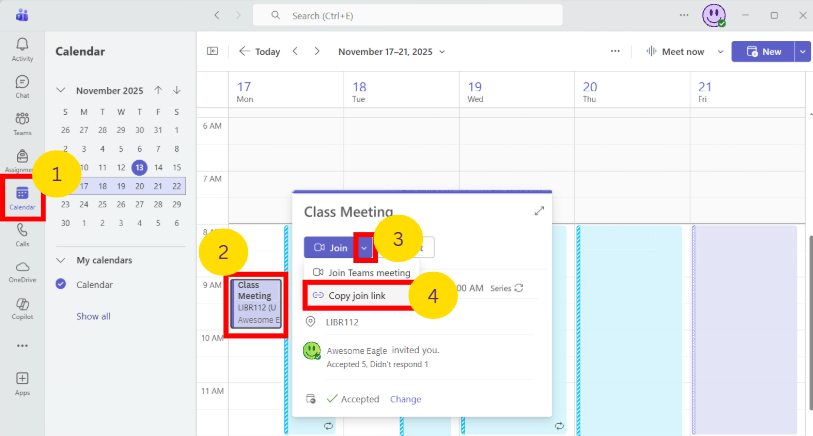
- Open the Calendar in the Microsoft Teams Desktop App
- Find one instance of the recurring class meeting
- Click on the down arrow next to Join
- Select Copy join link to copy the meeting link and share it with who needs it
Depending on your meeting settings, people not connecting from a @tntech.edu account or not in the class roster could not be allowed to join at all or be stuck in the meeting lobby until you let them in the meeting.
Joining the Meeting
The meeting invitation will be available within your Teams calendar, Outlook calendar, and within the Team itself. The steps for joining from your Teams or Outlook calendar are below.
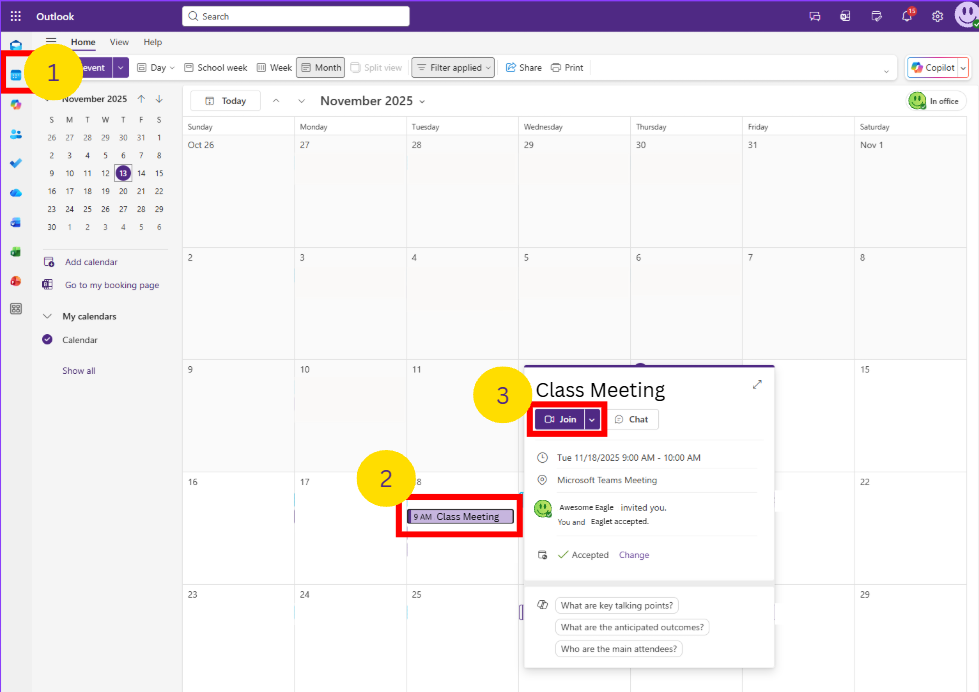
- » Outlook Calendar
- Open the Outlook calendar in the desktop app or web browser.
- Select the Class Meeting
- Select Join
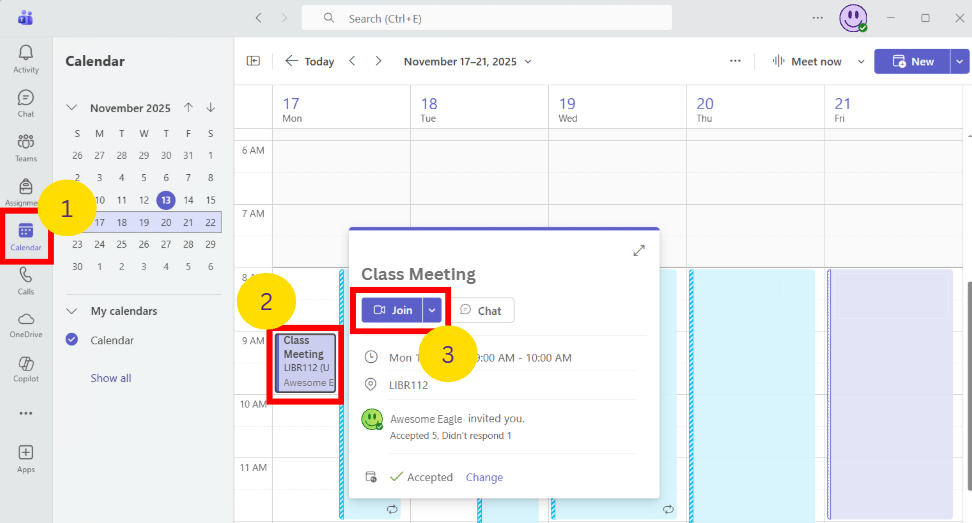
- » Teams Calendar
- Open the Teams desktop app
- Select the Class Meeting
- Select Join
Adding the Room as a Participant to the Meeting
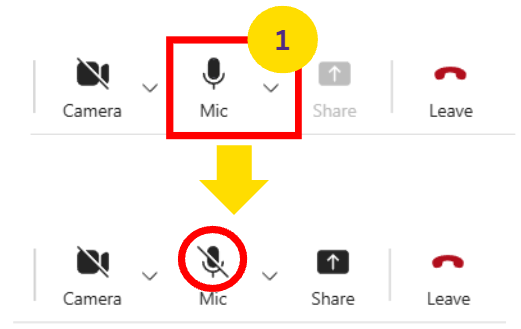
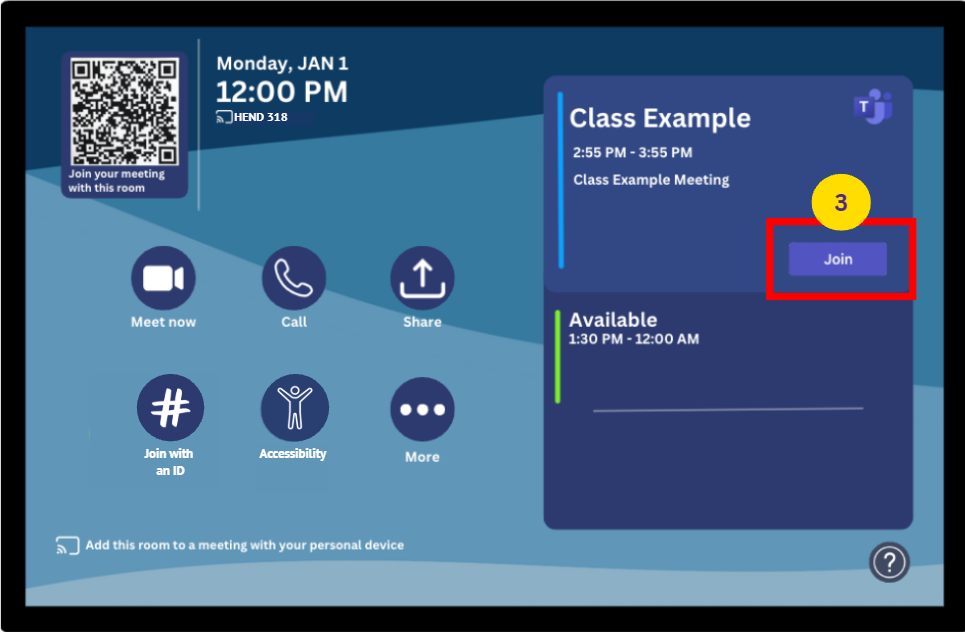
Once you have joined the meeting, you will need to join the meeting from the kiosk within the classroom. Be sure to mute your personal laptop/device and turn the sound off to ensure there is not an echo.
- Mute the microphone in Teams
- Turn off the sound for your laptop/device
- On the kiosk, find your scheduled meeting and select Join
Note about Participants
Teams participants (students, possible guest, and Room) will be displayed on one of the screens in the room. The other will stay dark until you connect your computer and share your screen. Participants can see the room through the Room Camera and see the other participants who have joined the Teams room.
Sharing a Screen and Presenting in PowerPoint
Here are different ways of sharing your screen or presenting in PowerPoints, depending on whether you connected wirelessly or through HDMI.
Sharing a Website or a Window
- » If you connected wirelessly
If you connected wirelessly, then you should share your laptop's screen in Teams, and choose the screen or window you wish to share with your class. This could be a website, D2L/iLearn, or document. You will also need to select "Include sound" if you are sharing a video.
To share your screen:
- Select the Share button at within the top menu bar in the Teams meeting on your personal device
- Select Include Sound
- Select the Screen or Window you would like to share
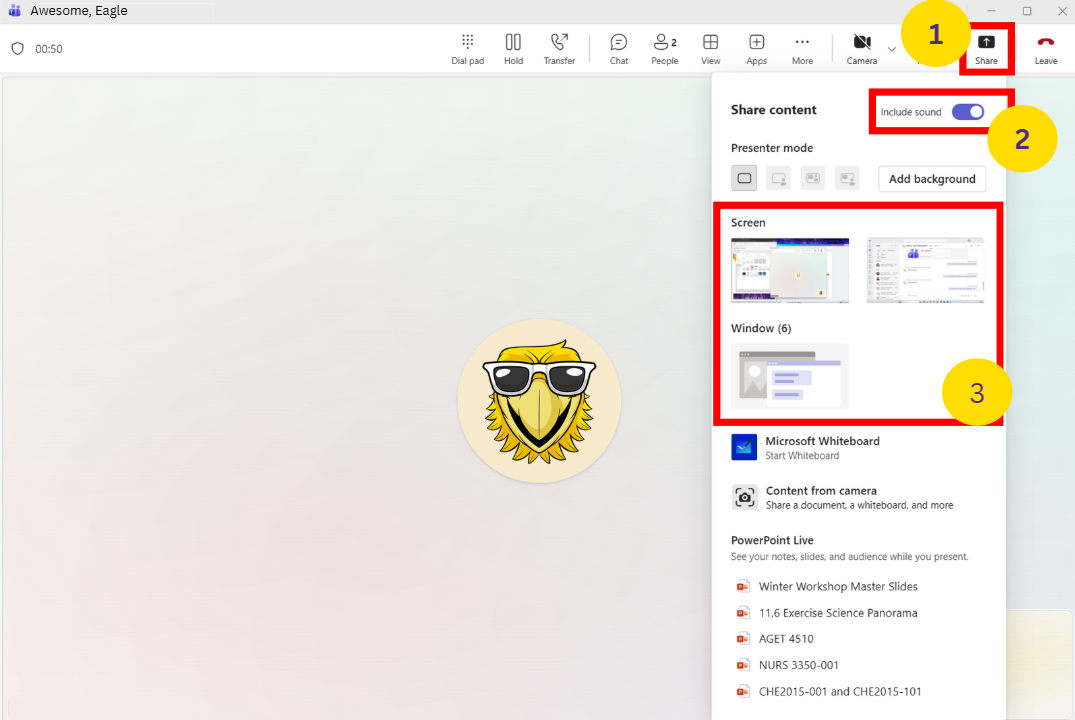
You should now be able to see your screen on one of the large screens within the room and your screen should have a thin red box around it within teams. Ensure the students in person and online are able to see your screen before you begin teaching.
- » If you connected through HDMI
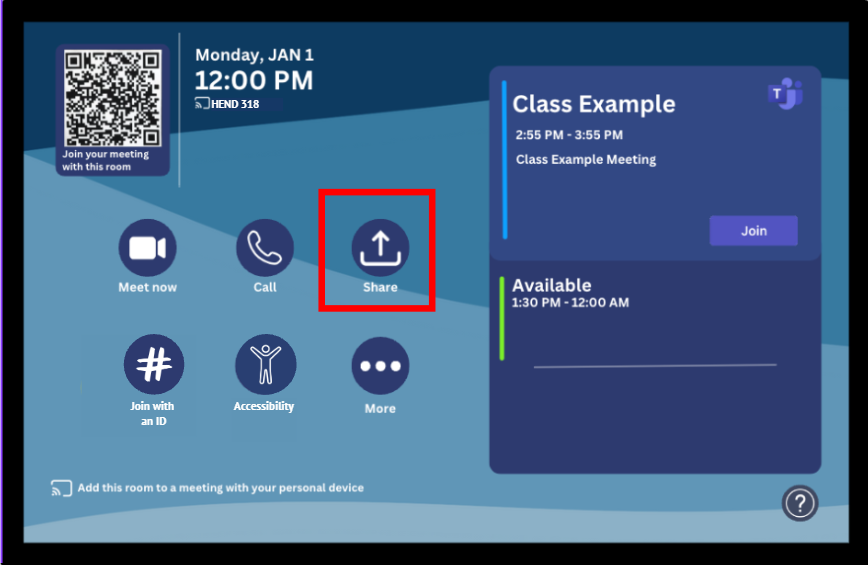
If you chose to present from the podium and plugged the HDMI cord into your laptop, your screen will display on the TV, but not within the Teams meeting.
Online students will not be able to see your screen until you share it within the Teams meeting. To share your screen with online students, choose Share from the kiosk.
Using the PowerPoint "Present in Teams" Feature
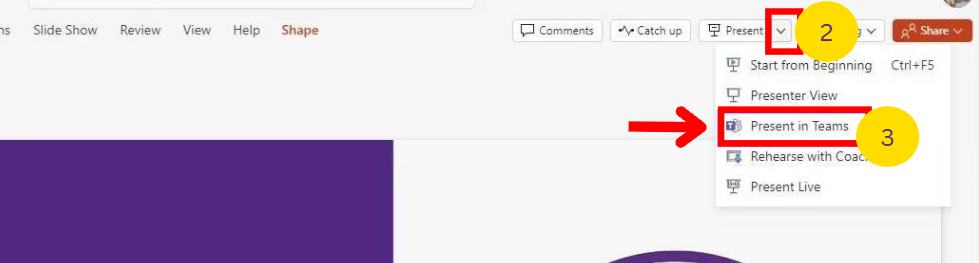
In the PowerPoint application, choose Present in Teams to have your PowerPoint shared with participants.
- Open the PowerPoint desktop app
- Click on the down arrow next to Present
- Select Present in Teams

Trouble Shooting
Possible scenarios and their solutions can be found below for commonly found issues.
- » Echoing Audio Loop
If you hear an echoing audio loop, make sure to mute any laptops and the microphone icons within Teams for all devices present within the room and who have joined the meeting.
- » Missing Chat
If the chat does not show up or is not working on the TV screen, click Leave on the kiosk. Then, click Join”on the kiosk to add the room back to the meeting. This should restore the chat feature.
- » Sound
If a video with sound isn't playing through the room audio or Teams, verify that your computer's audio output is set to its internal speaker.
Teaching with Teams
Check out the best practices for hybrid teaching below.
- » Integrate iLearn for Resources and Assignments
Use iLearn to upload course materials, assignments, and announcements so students in both formats have easy access to resources. Consider using a template from the CITL that is already aligned to best practices for hybrid learning.
- » Clear Communication
Provide students with a detailed schedule and instructions on in-person and online expectations. For example, what are the expectations for in-person and online attendance and participation? Plan for the questions that you will ultimately get asked, such as, "I originally registered for in-person, but need to be virtual next week. Is that okay?"
- » Share Content Effectively
Consider using PowerPoints and the "Present in Teams" feature to share content. This will increase the accessibility of online participants.
- » Engage Both Audiences
Use tools (e.g., polls, chat, breakout rooms) to involve remote and in-person participants equally. If you have taught the class before, look over engagement strategies you've used in the past and consider how they can be adapted for hybrid participants.
- » Technology Readiness
Test equipment (microphones, cameras, projectors) before each class. If you run into any issues, you can reach out to IT or the CITL.
- » Recording Sessions
Record the class for students who cannot attend live, allowing them to review the material.
- » Breakout Rooms
You can use breakout rooms during class meetings to divide students into smaller groups for discussions, group projects, and more.
You can create breakout rooms before or during your meeting, and change their number and settings throughout the meeting. Please refer to the Microsoft guide for Teams breakout rooms for more information.
For additional assistance related to teaching within a hybrid classroom, please contact the CITL at CITL@tntech.edu or 931-372-3675. For assistance with technology, please contact ITS at helpdesk@tntech.edu or 931-372-3975.