
Temporary License Plate Registration
Temporary license plate registration is intended only for rental vehicles, vehicles
owned by another individual, or a secondary vehicle that is not listed with your permit.
Step 1: Navigate to our Parking Portal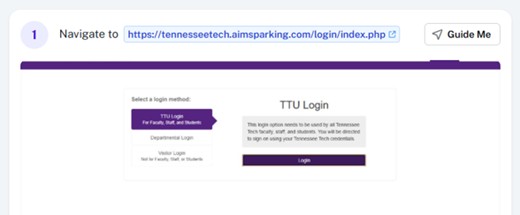
Step 2. Under “Select a login method": Select "TTU Login for Faculty, Staff, and Students"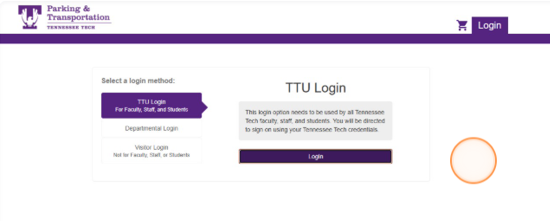
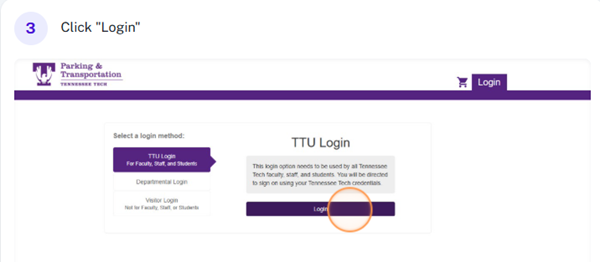
Step 3. Select “Login.”
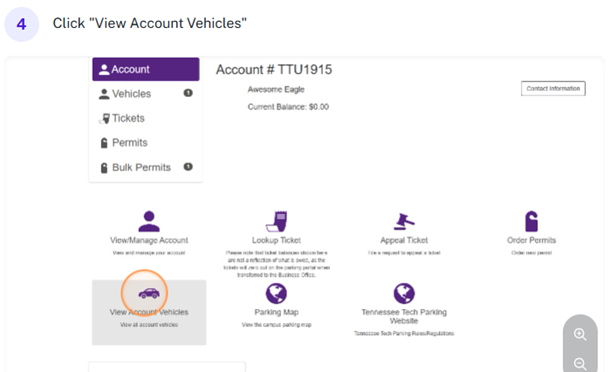
Step 4: Select “View Account Vehicles.”
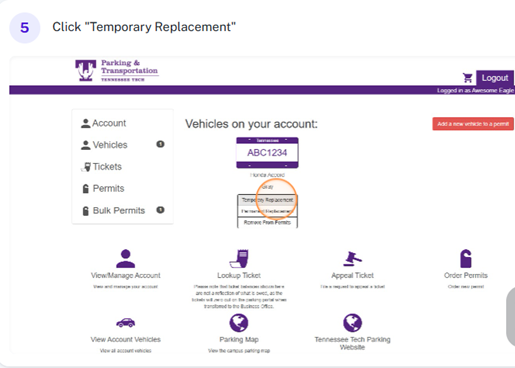
Step 5: Select “Temporary Replacement.”
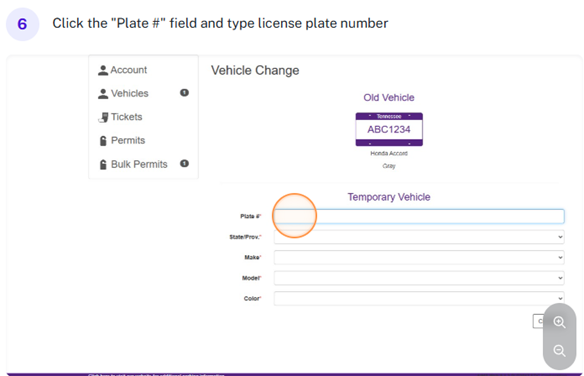
Step 6: Select the “Plate #” field and type the license plate number.
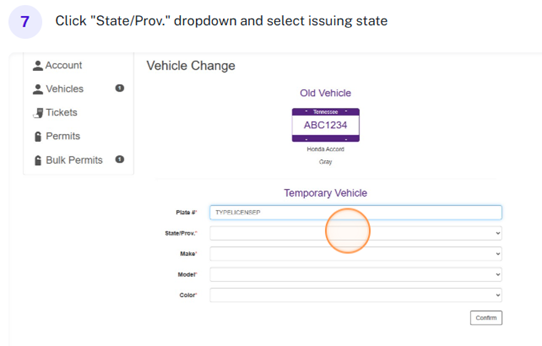
Step 7: Select the “Save/Prov.” dropdown and select the issuing state.
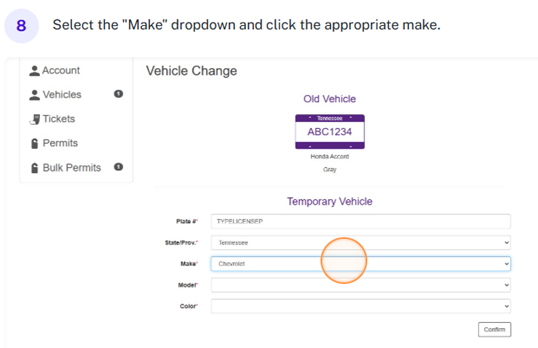
Step 8: Select the “Make” dropdown and choose the appropriate make.
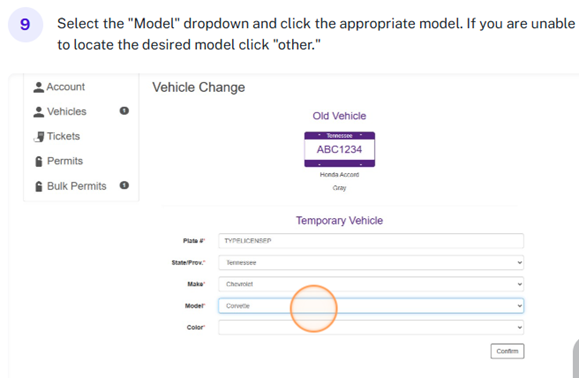
Step 9: Select the “Model” dropdown and choose the appropriate model. If you are unable to locate the desired model, choose “other.”
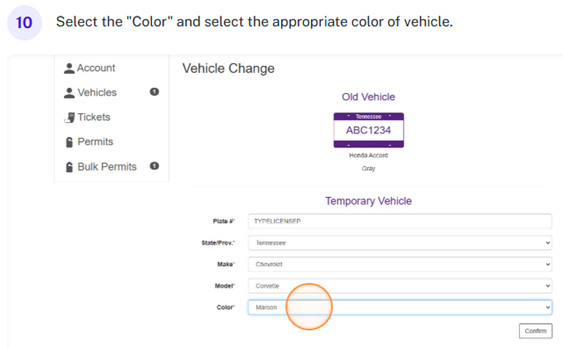
Step 10: Select the “Color” and select the appropriate color of vehicle.
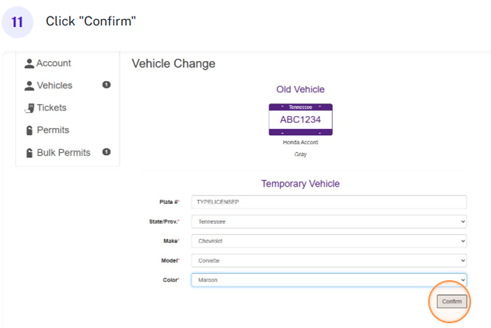
Step 11: Select “Confirm.”
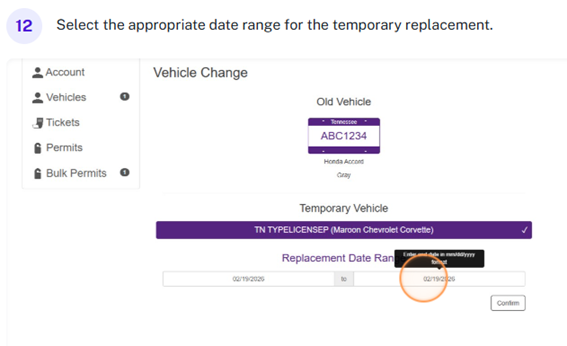
Step 12: Select the appropriate date range for the temporary replacement.
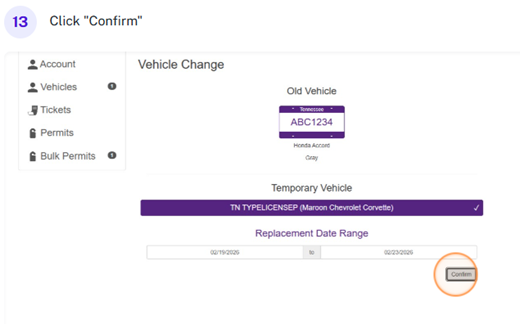
Step 13: Select “Confirm.”
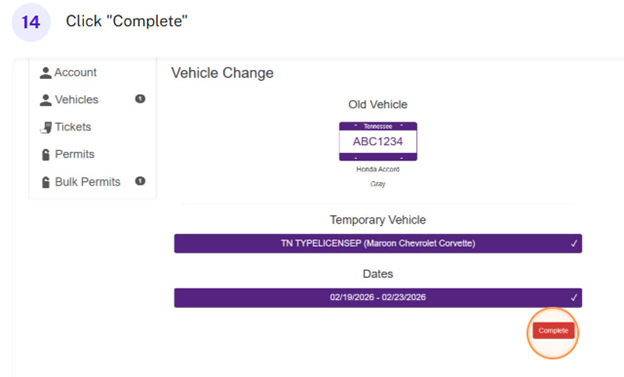
Step 14: Select “Complete.”
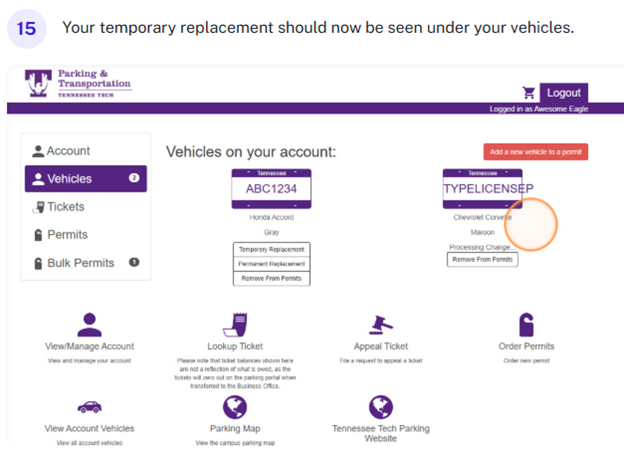
Step 15: Your temporary replacement should now be seen under your vehicles.